Back to Asset Essentials Main Menu
View and Manage Unscheduled Work Orders
This guide explains how to use the Planning and Scheduling feature to manage unscheduled work orders, including navigation, filtering and sorting, work order creation, and technician assignment. It is intended for users responsible for planning and scheduling work and focuses on enabling efficient, consistent ownership of work orders.
Navigation
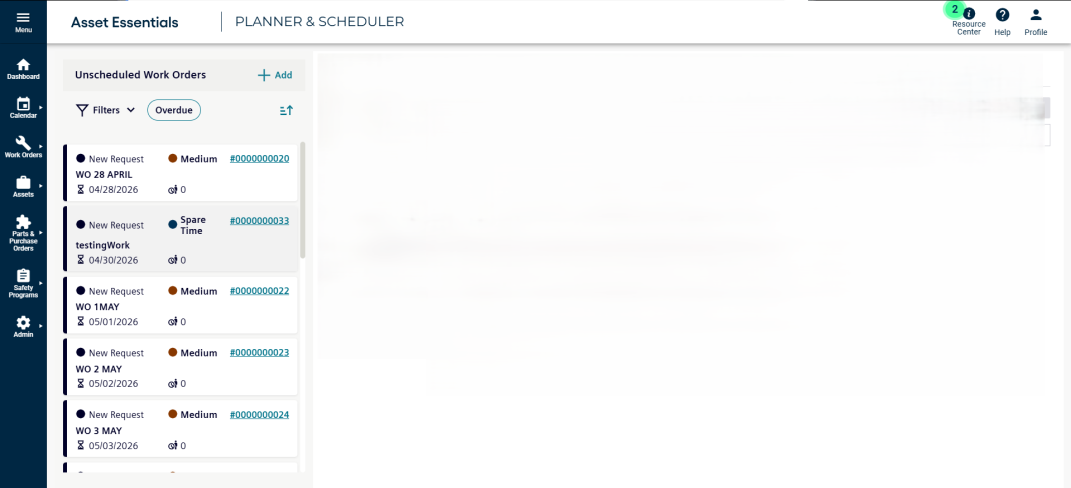
Click Planner and Scheduler option from the side navigation menu.
-
You will be redirected to the Planning and Scheduling page.
-
The left panel displays only unscheduled work orders.
Filter Functionality
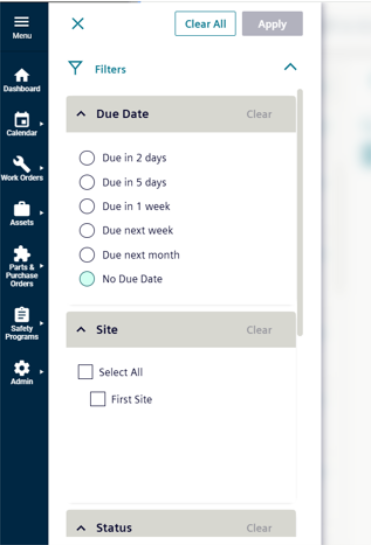
The Filter functionality helps in reducing effort when searching for specific work orders.
-
Click Filter button at the top of the unscheduled work order list.
-
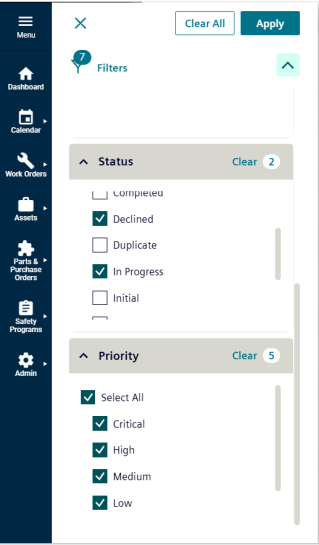
Apply filters based on:
-
Due Date
-
Status
-
Priority
-
Site
-
Location
-
-
Click Clear All button at the top of the filter panel to remove all applied filters.
-
Each filter category also includes an individual Clear option to remove selections.
-
-
Once filters are selected, click Apply button to update the list.
-
Click Close (X) icon to exit the filter panel.
Overdue Filter
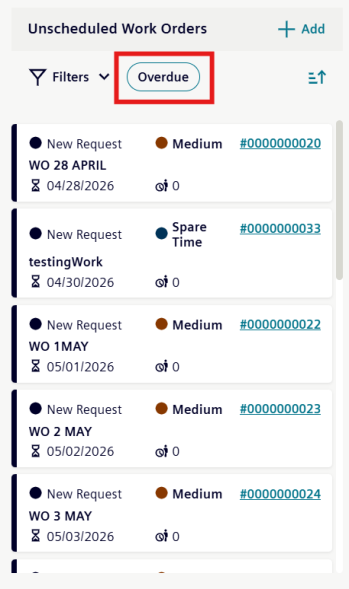
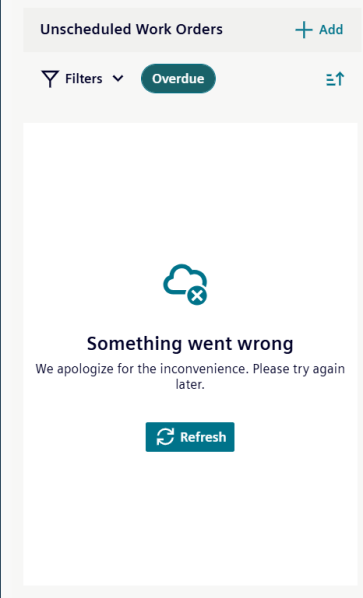
Click Overdue button at the top of the Unscheduled Work Orders list.
-
All overdue work orders will be displayed immediately.
-
This filter allows users to view all overdue work orders at once.
Sort Functionality
Click Sort button (located next to the Overdue filter).
-
The work order list will be sorted based on Due Date.
Creating a New Work Order
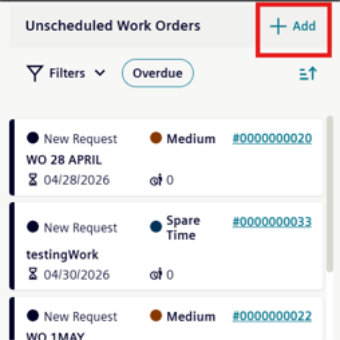
Click Add (+) button.
-
You will be navigated to the Create Work Order page in AE. Refer to Creating a Work Order guide for further instructions.
Assigning a Work Order
-
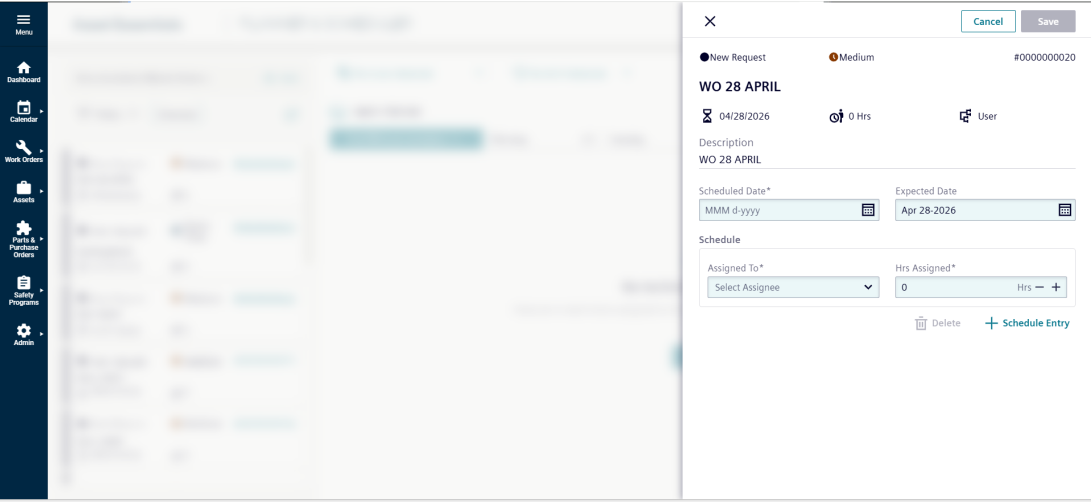
Select the work order you want to assign. A side panel opens from the right.
-
Review the work order details and description.
-
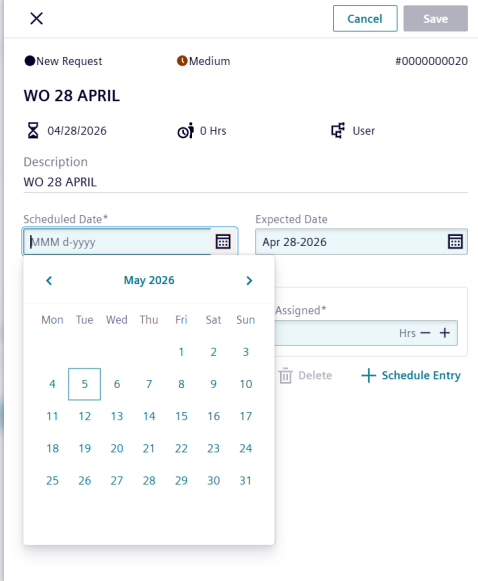
Select a Scheduled Date and Expected Date using the calendar.
-
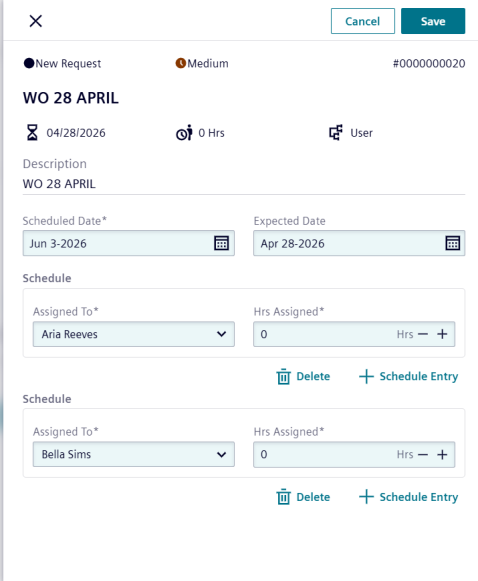
Use the Assigned To drop-down to select a technician (only one assignee per entry).
-
Enter hours in the Hrs Assigned field. Use the plus (+) and minus (–) icons to adjust hours.
-
Click Schedule Entry to add another assignee.
-
Click Delete icon to remove an assignee.
-
Click Save button to assign the work order.
-
Once saved, the work order is removed from the Unscheduled list. It will appear in the Planner list (currently under development)
-